CF-NFM-000
Flight Manual
Catch Fleet · Station Operations
Model: Alfa
This publication supersedes all rumors, guesses and forum posts, which should be removed from the files and destroyed.
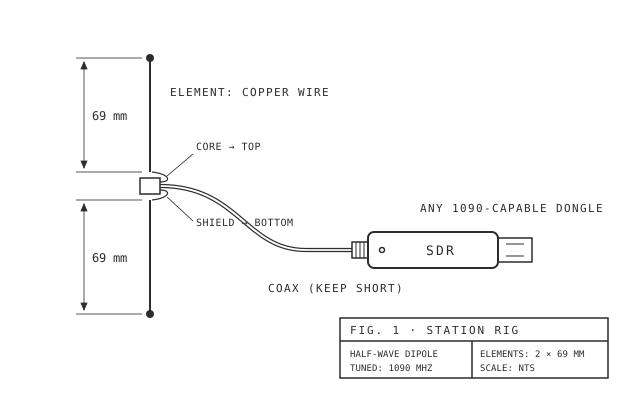
Fig. 1 · Station rig
Issued by authority of the Station Commander
and under the direction of nobody in particular
1 July 2026
The Game
There are real aircraft over your head right now, broadcasting who they are. Catch Fleet turns an antenna on your windowsill into a collection: every aircraft your station hears becomes a catch, fills your Dex, and earns patches for your wall.
Two sections come before your first catch. Pre-Flight gets the hardware and your location ready. Station Setup installs the two programs that do the listening. Work through them in order; most stations are on the air in under an hour.
After your first catch, the rest of this manual is reference. Open your Dex, your Fleet and the Patch Wall as they fill, and come back here whenever something needs explaining.
Pre-Flight
Have these ready before installing anything.
Step 1
Plug in the dongle
Your dongle is a small USB radio that hears aircraft. If it was sold for flight tracking or as a software radio (SDR), it is the right kind.
- Screw the antenna cable onto the dongle.
- Plug the dongle into a USB port.
- Use a port on the computer itself rather than a USB hub if you can.
Check the dongle appears in Device Manager (right-click the Start button, choose Device Manager). Where it appears does not matter yet; the next step puts it in the right place.
Step 2 · Windows only
Install the dongle driver
Windows does not know how to treat the dongle as a radio until you install the WinUSB driver for it. This is done once, with a small standard tool called Zadig, and it changes nothing else on your computer: the swap applies only to the device you select.
If this dongle has already worked with any SDR software on this computer, the driver is in place. Skip to CHECK.
- Install the WinUSB driver with Zadig, following the driver section of the RTL-SDR quick start guide (rtl-sdr.com/rtl-sdr-quick-start-guide). It is a five-minute, one-time job; take the guide's warning seriously and touch only your dongle's entry in Zadig.
Check Device Manager lists the dongle under Universal Serial Bus devices with no yellow warning triangle. If it sits under Sound, video and game controllers or Other devices instead, the driver did not take: rerun Zadig and reinstall.
Step 3
Place the antenna
Height and a clear view of the sky matter most. 1090 MHz signals travel line of sight.
- Stand the antenna vertical, element pointing straight up.
- Put it as high as you can with open sky around it: a windowsill beats a shelf, a roof beats a window.
- Keep the antenna cable short and away from large metal surfaces. If a high spot forces a long cable, use low-loss coax; thin cable loses signal fast at this frequency.
Check the antenna stands vertical at the highest clear spot you have.
Aside
The stock whip antenna is fine for your first catches. When you want more range later: three easy DIY antennas for beginners.
Step 4
Set your station location
Catch distances are measured from this point, so records and Range patches depend on it. Your coordinates are never shown to anyone.
- Find your latitude and longitude: right-click your home in Google Maps and the two numbers appear at the top of the menu. Click them once and they are copied.
- Paste or type them below and save. Four decimal places is plenty. Use a dot for decimals, not a comma: 41.0082, not 41,0082.
Sign in to save your station location here. Sign in
Station Setup uses these same two numbers for the decoder; the commands there will show them filled in for you.
Check the form confirms the save.
Station Setup
Two programs run your station. The decoder turns radio into aircraft messages; the Listener turns messages into catches on your account. Each is installed once. Install the decoder first: the Listener reads from it.
Station Setup · Step 1
Install the decoder and give it your location
The decoder must know where it is listening from. Without a location it cannot judge distance, and weak signals can decode into aircraft thousands of kilometers away.
- Download the latest release zip from gvanem's Dump1090 page (the .zip under Assets) and unzip it to a folder you can find again, for example
C:\dump1090. To unzip: right-click the downloaded file, Extract All. - In that folder, run setup.exe once. It asks for your location, saves it, and closes; that is its whole job. Give it the coordinates from Pre-Flight, latitude first:No station location saved yet. Set it in the location step in Pre-Flight first, then this command fills in your coordinates automatically.
- Open the folder's command window: click the folder's address bar, type cmd, press Enter.
- Start the decoder by typing this and pressing Enter:
dump1090.exe --interactive --net - Leave the window open: closing it stops the decoder. Rows of aircraft appear as they are heard.
Check the window shows a table that refreshes; even an empty table that refreshes means the decoder is running and listening.
Station Setup · Step 2
Install the Listener and link it
The Listener is Catch Fleet's own program. One command installs it; the command downloads only from playcatchfleet.com and its output tells you each thing it does.
- Open PowerShell: press the Start button, type powershell, press Enter. This is a different window from the cmd one the decoder uses; the installer needs PowerShell, the decoder does not care.
- Run:
irm https://playcatchfleet.com/install.ps1 | iex
Prefer to click? The download page has the file for each system.
Installer won't run? The Node.js fallback lives under Station Maintenance.
Next:
- The installer ends with SETUP COMPLETE and points at the launcher it created. A CatchFleet Listener icon on your desktop.
- Start the Listener from there. The first start opens your browser with a short code: press Confirm (sign in first if asked; it is the same account as this manual). The code is valid for 15 minutes; if it expires or the tab gets closed, start the Listener again for a fresh one. While it waits for your confirmation the window prints nothing; that is normal.
- Linking happens once. Every later start prints “Using saved station link.” and goes straight to catching.
- Lines beginning with “Caught” are catches landing. A repeating “reconnecting to 127.0.0.1:30003” line means the decoder is not running: go back to step 1 and start it, the Listener connects by itself.
Check your dashboard's Listener card reads ONLINE and shows the version.
Catches follow traffic, not the clock: with aircraft in range the first “Caught” line lands within minutes, at quiet hours it can take longer. The setup is done either way once the card reads ONLINE.
Station Setup · Step 3
The daily routine
Setup never repeats. After a reboot:
- Start the decoder: open the dump1090 folder, click the address bar, type cmd, press Enter, then run
dump1090.exe --interactive --netagain. - Double-click CatchFleet Listener on the desktop.
Check dashboard says ONLINE.
Station Maintenance
Setup never repeats, but stations live on. Updates, linked machines and the fixes for the usual hiccups live here.
Updating your Listener
Your dashboard's Listener card shows an Update available chip next to the version whenever your station is running an older build than the current release. No chip, no update needed.
- To update: stop the running Listener first (Ctrl+C, or close its window).
- Re-run the same install command you used the first time. The installer downloads the newest Listener over the old one, in place: nothing to uninstall, nothing to delete. Your station link and desktop launcher keep working exactly as before.
- Start the Listener from the desktop launcher as usual. The version on your dashboard updates after the first heartbeat (the Listener's once-a-minute status ping), within a minute of starting.
Troubleshooting
Catches land but distances are missing
Two possible gaps, check both: your game location (the location step in Pre-Flight, also on the Account page), and the decoder's location (the decoder step in Station Setup: homepos in dump1090.cfg on Windows, the --lat/--lon flags on macOS, readsb-set-location on Linux). The Listener warns at startup when it can detect the decoder has no location, but it cannot always detect it.
The Listener says filtered as noise
An occasional filtered line is normal: single stray frames that match no known aircraft are held back so they do not appear as false catches. If EVERY line says filtered, your decoder's location is likely wrong: redo the decoder step's location in Station Setup and restart the decoder.
The Listener keeps printing reconnecting every 5 seconds
The decoder is not running or was closed. Start it (the decoder step in Station Setup) and the Listener connects by itself.
The decoder won't start or can't open the deviceWindows
The driver step was skipped or did not take: redo the driver step in Pre-Flight (Zadig). Also check the dongle is still plugged in.
readsb is active but no aircraft ever appearLinux / Raspberry Pi
A system update can hand the dongle back to the TV-tuner kernel driver. Rerun the readsb installer from the decoder step in Station Setup; it reclaims the device. Also consider a powered USB hub on a Pi.
Range is poor / only nearby aircraft appear
Antenna placement first (the antenna step in Pre-Flight), gain second: decoders default loud, and in strong-signal areas lowering gain helps. Community guidance: search "ADS-B gain optimization".
The Listener says this account is not enabled yet
Expected while Alfa access is being set up for you; your station link is fine. Leave everything installed and start the Listener again after access is confirmed.
Still stuck? Email [email protected] and a human will help. There is exactly one human. He answers.
Linked stations
Retire or revoke a machine
Every linked Listener holds a Listener keyon that machine. Retiring a computer, or seeing one here you don't recognize? Press Revoke: the next run stops and clears the link, and the run after asks to link again.
Second computer? Safe.
A second computer can run its own Listener on the same account: each holds its own Listener key, and overlapping catches are deduplicated. Running two stations at once is safe.
Sign in to get your Listener key. Sign in
If the installer won't run
Older Windows (before 2018), a 32-bit Pi, or a locked-down box: install Node.js 18 or newer and run the Node build instead. Same short-code link flow, it just needs Node.
node catch-listener.cjsVersion matters: on Debian and Raspberry Pi OS, apt install nodejs often installs a Node that is years old. Check with node --version; v17 or lower will refuse to start the Listener, so install from nodejs.org instead.
Grab catch-listener.cjs from the Listener releases.
The Dex
The Dex is your collection of aircraft types. Catch one aircraft of a type and the type unlocks, forever. A shelf of it looks like this:
Terms you will meet
Type
The collectible unit. Not a Boeing 737 but a 737-800 specifically. There are 103 collectible types in the catalog today, and the catalog grows: your completion percentage can dip when new types join, but your catches never disappear, the shelf just got longer.
Mystery Signal
An aircraft your station heard but could not fully identify. Not a failure: a mystery. As the reference data grows, old mysteries keep turning into catches, and the catch is never lost.
Sighting
One continuous visit by one aircraft. Repeat passes within half an hour still count as the same sighting.
Legacy
Retired and rare types outside the main collection. They do not count toward completion. Catching one is a story to tell.
Record Distance
The farthest an aircraft has ever been when your station caught it. Better antennas move this number. Bragging rights included.
Family
A group of closely related types under one manufacturer, like the A320 family. Fill a whole family for a clean sheet: families need at least three collectible types to print Family Album patches.
Manufacturer
The company that builds the aircraft, like Airbus or Boeing. Manufacturers group families, and families group types.
Fleet
Every aircraft your station has ever caught. One card per airframe.
Rarity
How impressive a catch is. The full tier legend lives under Markings.
Patch
A decoration earned by your station: first contact, a closed family, a distance rung. Earned is earned, forever. The full wall lives under Patches.
Patch Wall
The page where earned patches hang. Until you pick a showcase, your three newest patches ride along on your profile and dashboard too.
Markings
Stamps mark the state of a catch, a type, or a record. Here is the full legend, printed with the real ink.
A confirmed catch: the aircraft type is known.
Heard but not fully identified. Many resolve later.
The type is known already. It just has no catalog shelf yet.
Fresh ink: a first catch, or a type unlocked in the last few days.
A type you have collected in the Dex.
A manufacturer with at least one caught type.
The aircraft that earned its type's first unlock.
The catch that holds your station's distance record.
The sighting that set this aircraft's record distance.
A distance beyond the reception horizon, waiting for review before it can count as a record.
Your latest unlock, hot off the press.
A retired or rare type, outside the main collection.
A type you have not caught yet. Still out there.
A known issue we are still working on.
A known issue that has been resolved.
Your account identity block, confirmed.
Rarity tags
Rarity is a label, not a stamp: tiers band a type by its worldwide active fleet, not by how often your own station hears one, and it never changes what counts toward completion.
Everyday traffic: a thousand or more flying worldwide.
A few hundred in service. You notice when one passes.
25 to 199 flying worldwide. Worth logging by name.
A couple dozen or fewer, still active. Once-in-a-lifetime ink.
Catching
Your station hears an aircraft, reads the identity off the signal, and files the catch. Every coupon is printed on cream paper, but its band and stub are inked like the three sheets of a carbon-copy book: the color tells you the state before you read a word:
A clean match: the type is known, the catch files, and the Dex unlocks if it is new.
We know what it is, but that type has no catalog shelf yet. A name waiting for a shelf.
Heard, logged, unnamed. A question mark on file, and could be a new type.
Never wastedAn incomplete catch is unfinished, not wasted. We re-run identification over your whole history as the catalog and reference grow: yellow sheets earn their shelf, pink sheets get their name, and nothing you caught is ever thrown away. Mystery and provisional catches are kept and shown, but only identified types count toward Dex completion.
Identities come from community aircraft databases: the OpenSky Network and ADS-B Exchange, with thanks to both. Some aircraft appear in neither and print pink for now; as the reference data grows, old mysteries keep turning into catches.
Anatomy of a catch
Every catch prints as a coupon. Here is what each part means.
- Band: the coupon class and issuer.
- Identity stamp: how sure we are of the catch.
- Type name: the collectible type you unlocked.
- Hex (the aircraft's unique radio ID) and callsign: the aircraft's radio identity.
- Field boxes: your sightings and record distance.
- Catch Nº: the aircraft's first-catch order in your Fleet.
Distance records
Two distance numbers matter.
Farthest Catch
The single longest catch across your whole station: one proud number.
Record distance
Per aircraft: the farthest that specific airframe was when you caught it.
Both move when your antenna improves, and both print in kilometers or miles, whichever you pick in Account.
Aside
Aircraft broadcast their own GPS position, and you told us where your station is. For each pass, we take the last position your station heard and compute the ground distance between that point and your station, along the curve of the earth, ignoring altitude. Your best distance across all passes is what sticks. Distances beyond the reception horizon, about 600 km, wait for verification before they can touch a record or a Range patch, and show as awaiting verification on the catch until then. No location on file, no math.
Patches
Decorations & awards, sewn on with real thread: patches mark the things that actually happened over your antenna. Every one answers “how did you earn that?” with a story.
Earned is earnedNo patch is ever taken back. Your log counts from before the Patch Wall existed.
Categories
Station
Proof the wire on the roof works: first contact, first positive ID, your call letters, your grid square.
Dex Progress
Families closed, type ratings earned, whole factory lineups swept clean.
Range
The DX ladder: Local Sky, Long Reach, Radio Horizon, and Tropo: the long shot you wait years for.
Rare Air
Rare birds, lifers, twitchers, heritage flights. The catches you tell stories about.
Fleet Milestones
The Long Watch: the quiet ledger of a station that never stops listening.
Squadron
Alfa Crew. Issued once to the founding stations, then the mold is destroyed.
Your Patch Wall showcase holds three slots that ride your profile and dashboard. Until you pick, your three newest ride along.
Series climb with you: closing a five-type family prints every level under it. All patches wear the same provisional artwork for now; real embroidery is on the drawing board.
Squawk List
No open squawks. Suspicious.
Found something wrong? Report a bug or email [email protected].
Change Notices
Date received 24 Jul
These pages supersede Change 7. Insert into basic publication. Destroy superseded pixels.
- Listener 0.5.3 is out, and stations under a busy sky should update before anything else today. The first Alfa station abroad came online under dense UK traffic and found a leak the quiet skies never showed: the Listener's memory grew with every message until the machine gave out, roughly every five minutes at that traffic. The leak is closed, the fix is confirmed against half a million messages, and the update is one installer command, the same one that installed it.
- Listener 0.5.2, released the day before, taught a stop to explain itself: ending the Listener on purpose now reports the reason, the dashboard shows a calm STOPPED instead of an alarm, stopping with catches still in hand announces the flush instead of appearing to hang, a machine that slept says so on waking, and a missing decoder gets named plainly after a few failed connects.
Change 8 · July 2026
Date received 20 Jul
These pages supersede Change 6. Insert into basic publication. Destroy superseded pixels.
- Eleven more types now carry a technical drawing on their Dex plate: the 747-400 and the Dreamlifter, the B-2 Spirit, the C-130 Hercules, the C-17 Globemaster III, the CL-415, the Rafale, the Typhoon, the F-16, the Global 7500 and the Gulfstream IV. Sixty-one of the fleet's one hundred and twenty-one types now have a drawing on file.
- Three plates have been pulled and returned to an empty archival card. The 777F, the 787-9 and the 787-10 were carrying a drawing of the wrong airframe, and a wrong drawing is worse than an honest blank. Each will be reissued when a correct one reaches the archive.
- The plate viewer no longer opens underneath the footer. Enlarging a drawing near the foot of a long Dex page now lifts the whole plate clear of everything else on the page.
- The seven-day counters now say what they count. Panels reading This Week are relabelled Last 7 days. They have always counted a rolling seven days back from now rather than the calendar week, and the old label implied a Monday reset that never happened.
Change 7 · July 2026
Date received 14 Jul
These pages supersede Change 5. Insert into basic publication. Destroy superseded pixels.
- Mac setup now names the command the decoder actually answers to. Homebrew installs the package as dump1090-fa but the program as dump1090, and Station Setup printed the package name: a Mac that followed the old line was told, correctly, that no such command existed. The Setup pages carry the working command.
- Listener 0.5.1: the first attempt to link a Listener no longer gives up on one slow answer. It waits longer, tries three times, and if the fleet still cannot be reached it says so in plain words instead of a machine's shorthand.
- Listener 0.5.1: a Listener whose station key no longer opens the door now stops and asks to be linked again. Until now it kept running against a station that could not hear it, and the terminal looked healthy while nothing was being logged.
- The fleet's mail no longer arrives with a stray dotted capital in its headings for readers whose mailbox is set to Turkish.
Change 6 · July 2026
Date received 14 Jul
These pages supersede Change 4. Insert into basic publication. Destroy superseded pixels.
- The ship now carries its papers. A Privacy Policy and Terms of Service are filed at the foot of every page. The short version has not changed and will not: your station coordinates are never shown or shared, your data is never sold, and the only cookies aboard are the ones that keep you signed in.
- The boarding form now states its business plainly: your email is used to reach you about the Alfa, and for nothing else.
- The site now counts its own visitors, on our own server, without cookies and without storing anyone's address. It tells us how many arrived and where from, nothing about who. Browsers asking not to be tracked are not counted at all.
- Your Account page can now hand you your whole record: Download my data writes your profile, station, catches, Fleet Log, Dex and patches to a single file. Next to it, Delete account closes the station for good. Deletion takes everything with it, including your standby request, and there is no way back, so it asks you to type your username first.
- The fleet's records are now copied every night and kept off the ship, so a lost database no longer means a lost game. The Privacy Policy says who holds the copies and how long they live: thirty days at most, and a closed account can sit inside one for that long.
- The mail the fleet sends now arrives on the same paper as the rest of the ship. Your boarding code, the sign-up confirmation and the password reset all carry the ticket band and the carbon stamp instead of a plain white page. The links inside them work exactly as before.
Change 5 · July 2026